How to set up an investor data room. A clear place to start.
A practical folder structure, an editable checklist, and a walkthrough using a real AnyShare demo room.
An investor data room is a controlled collection of documents that helps investors review a company. Start with the material needed for the current conversation, organize it into clear folders, and share it with the intended recipients. In AnyShare by Anysoft, you can group existing documents into a room, require verified email access, restrict the allowed addresses, and revoke a room link later.
Download the investor data room checklist20 items · Editable CSV for Excel or Google Sheets · No signup
Start with the conversation. Then choose the documents.
For an introductory conversation, a deck may be enough. Once supporting documents are useful, create a small overview room. For deeper diligence, agree on a request list and give that audience a separate room with the appropriate records. The stages below are a suggested starting point; an investor’s requests, your business, and your advisers determine the final contents.
Folders organize files; they do not create separate permissions. An allowed recipient of an AnyShare room link can access the documents in that room. Two links to the same room do not create two different document sets. Use separate rooms when audiences need different material.
01 Company overview
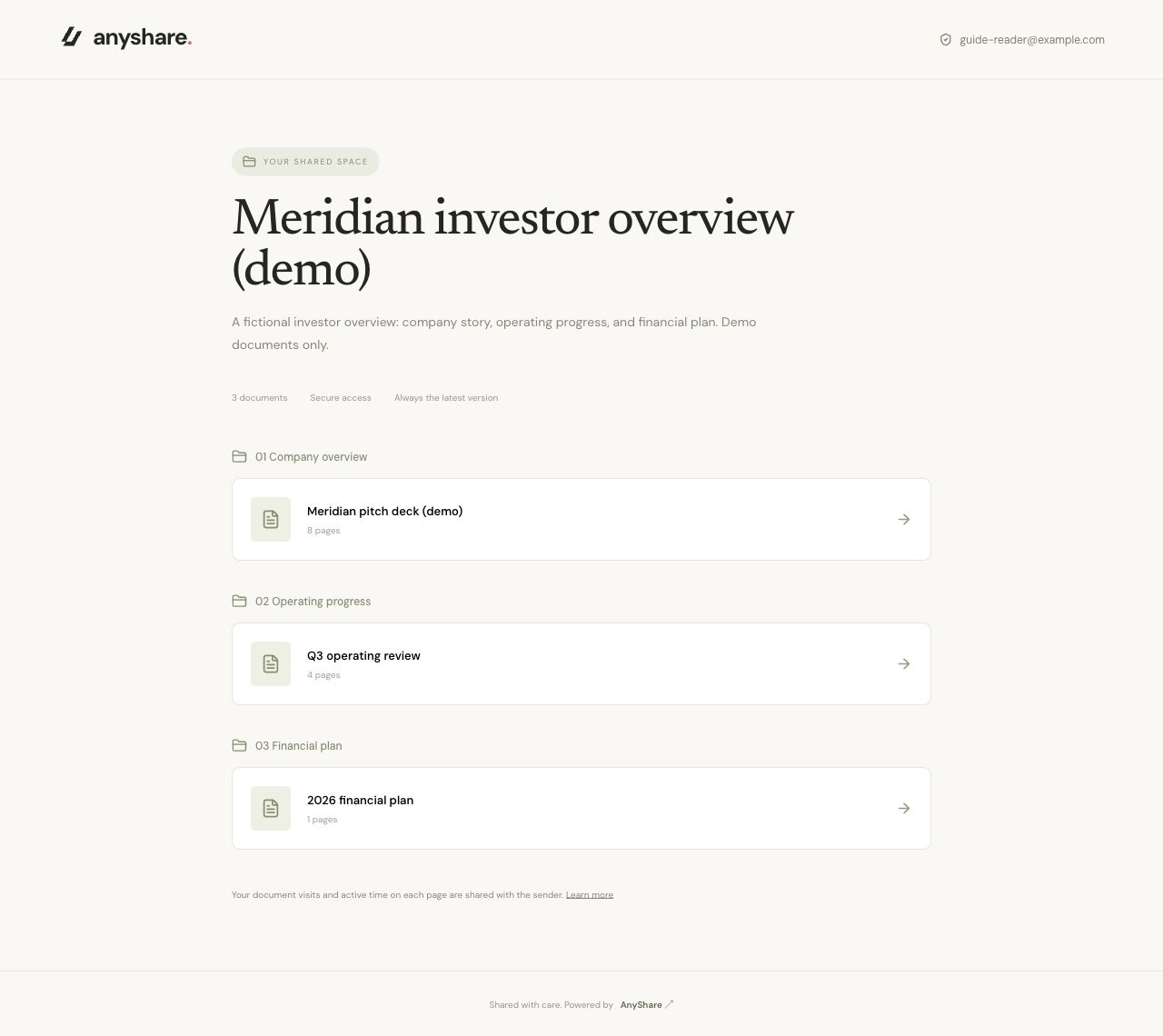
Pitch deck, short room index, team introduction
Start with the story and tell readers where to find supporting material.
02 Operating progress
Dated operating review, metric definitions, product roadmap
Use a consistent reporting period. Label estimates and explain changes in definitions.
03 Financial plan
Forecast with assumptions, use-of-funds summary; historical statements when requested
Distinguish actual results from projections. Keep the figures consistent with the deck.
04 Ownership & company records
Current cap table, incorporation records, prior financing documents
Confirm the required scope with the investor and your advisers before granting access.
05 Commercial & product evidence
Relevant contract samples, customer evidence, IP ownership records
Review disclosure permissions and redact unnecessary personal or confidential information.
06 Team, governance & requests
Requested team or governance records, open-question log
Keep sensitive records in a separate room for the people who need them.
Make the checklist yours.
Download it, remove anything that does not apply, and assign an owner to each remaining item. Fill in the review date, audience, status, and access notes before sharing.
The document categories draw on Gale Wilkinson’s fundraising guidance on DocSend and the UK Space Agency’s data room checklist. The latter is sector-specific; this guide does not treat its UK or space-sector requirements as universal.
Give the material a clear structure.
- Upload your files in Documents and wait until they are ready. Open each preview and check its contents. The current limit is 100 MB per file.
- Open Data rooms → Create data room. Give the room a descriptive name and add a short explanation of what it contains.
- Select Add folder for each section. Numbering folders makes the reading order explicit.
- Under Choose documents, select the files and choose a destination folder for each. Select Create data room to save.
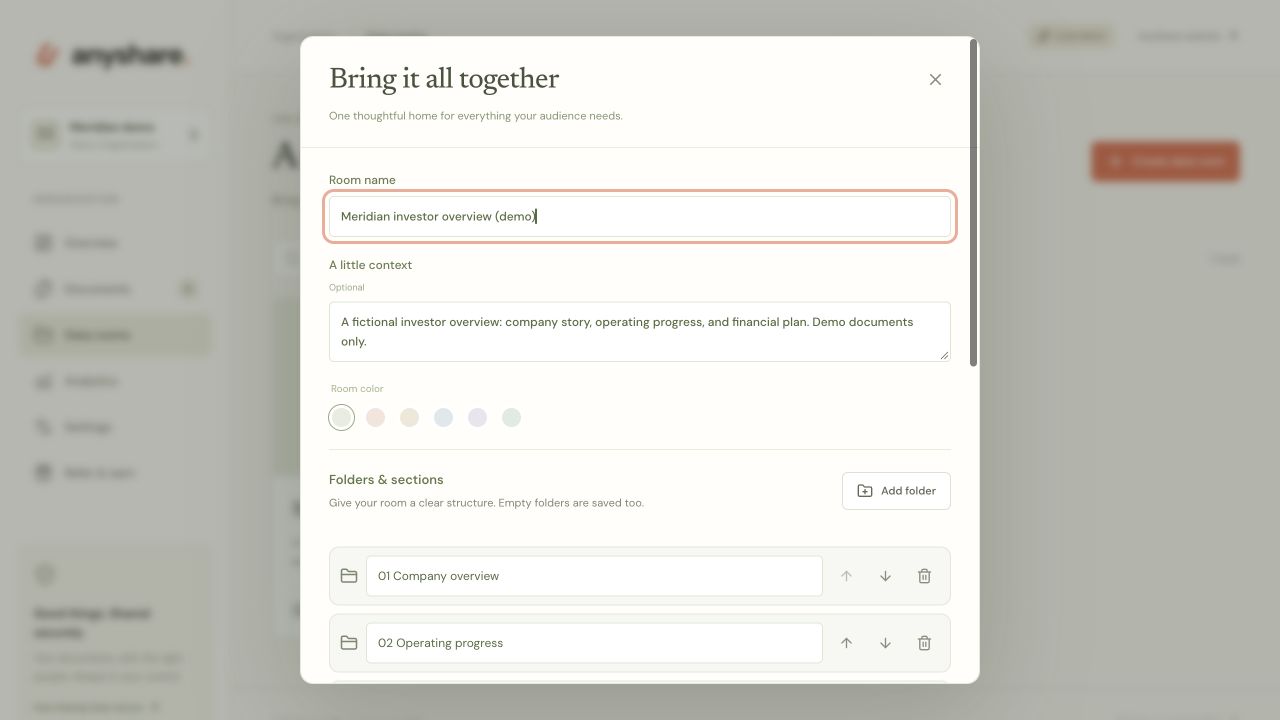
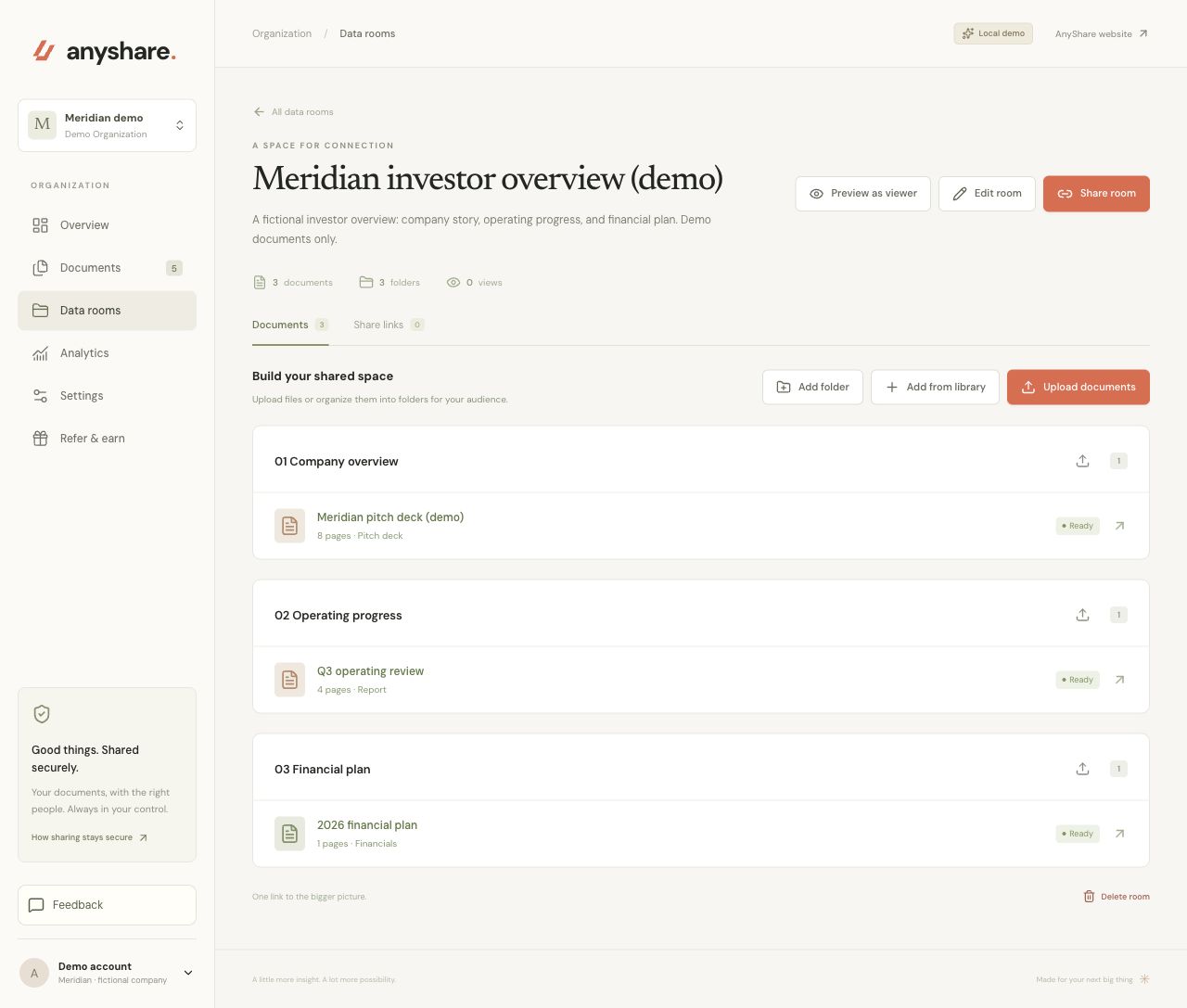
After creating the room, use Add from library to include another existing document, Upload documents to add a new file, or Edit room to change its organization. Review the room’s contents before sharing: adding a file later makes it available through the room’s existing active links too.
Make access an explicit decision.
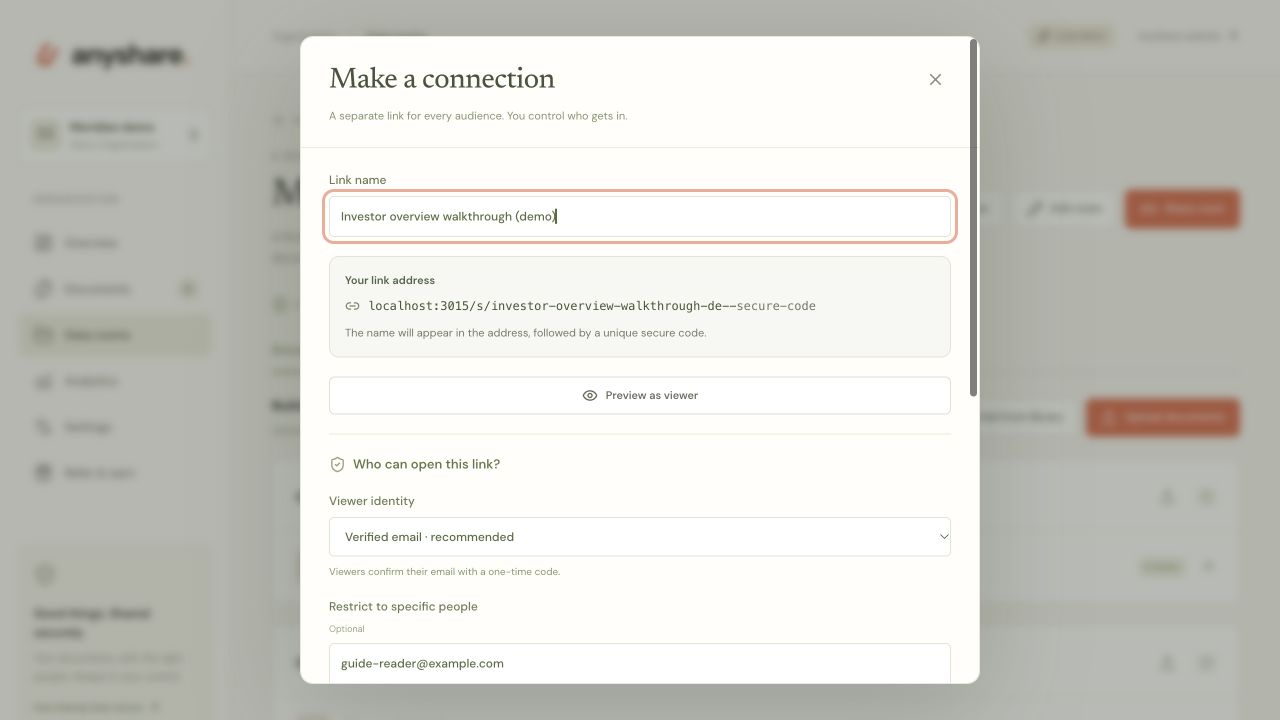
Select Share room and give the link a name that identifies its audience. Separate links let you manage each audience’s access independently; they still open the same room contents.
- Verified email + allowed addresses
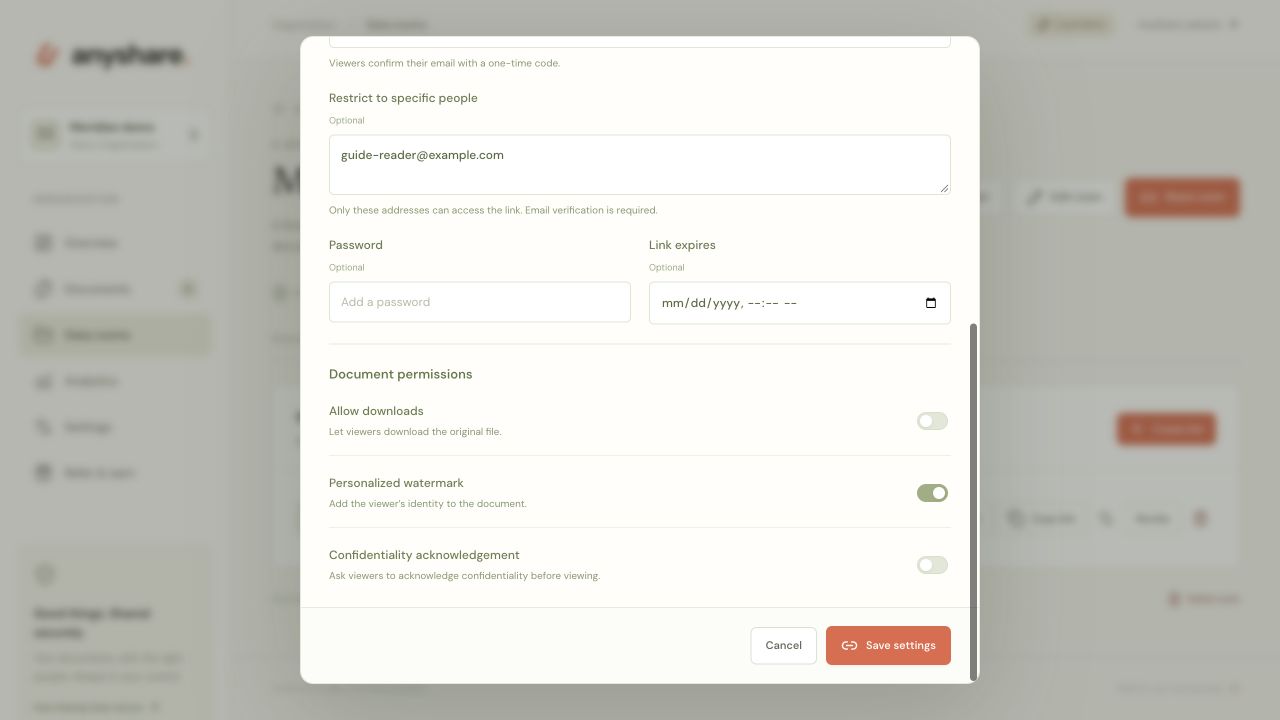
- Keep Verified email selected. Add the intended recipients under Restrict to specific people. Verification alone checks inbox access; without an allowed-address list, someone else with the link can verify their own email.
- Passwords and expiry
- Use a password when your sharing arrangement calls for another access check. Set an expiry when access should end at a known time. In this demo, both are left unset.
- Downloads and watermarking
- Leave Allow downloads off to withhold the original-file download button. Enable Personalized watermark to display the viewer’s identity on the document. Neither setting prevents screenshots or recalls a copy already saved.
- Confidentiality acknowledgement
- This optional viewer acknowledgement is not built-in electronic signature collection. If your process requires a signed agreement, complete it separately before granting access.
Test the link before you send it.
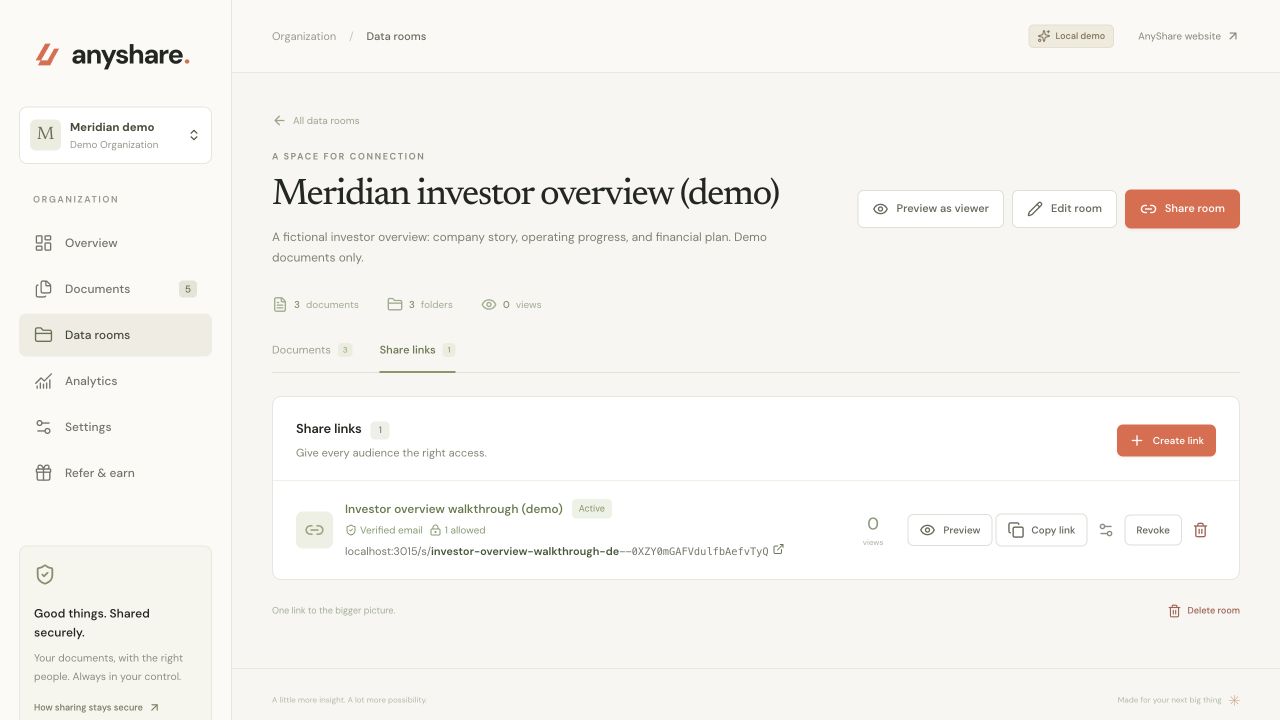
- Select Create share link. In the room’s Share links tab, use Copy link to copy the saved address.
- Open the actual link in a separate browser session. Use an address you control that is included in the allowed-address list, then enter the verification code from that inbox.
- In another private browser session, try an address that is not on the allowed-address list. Confirm that it cannot enter the room. Use a fresh session so an earlier successful verification does not affect the test.
- Check the room name, folder order, and files. Open the documents to confirm that they render correctly and show the intended watermark and download controls.
- Remove any temporary test address from the link settings before sharing with investors. Test activity is demonstration traffic; account for it when interpreting visits.
Preview as viewer is useful for checking presentation. Testing the actual share link also checks the recipient access flow. Recipients do not need to create an AnyShare account.
Every admitted room recipient can access the room’s documents. Moving a file into a different folder does not hide it from a recipient. If two investor groups should see different documents, create separate rooms and test each audience’s link before sending.
A current room. A considered follow-up.
Assign an owner.
Keep the checklist with your internal working files. Record who owns each document, when it was reviewed, and which audience should receive it. Resolve outdated or conflicting versions before adding them to the room.
Read document activity.
Open a document’s Overview to review visits, active time per page, and completion. A room opening is not evidence that every file was read. Activity can help prepare a conversation; it does not establish understanding or investment intent.
Review access.
When a conversation ends, use Revoke in the room’s Share links tab. That stops access through that link. Check other active room and document links separately; revoking one link does not revoke them all.
Use the document’s Versions tab to upload a replacement under the same document. Links open its latest ready version. Earlier visits remain tied to the version viewed, so select the corresponding version when reviewing analytics.
A few practical answers.
01What should an investor data room include?
Start with the documents needed for the current stage: a pitch deck, a dated operating summary, and a financial plan may support an initial overview. Deeper diligence can require ownership, company, contract, and team records. Agree on the request list with your investor and advisers; this checklist is a starting point, not a universal requirement.
02Can I give different investors access to different folders?
AnyShare room links control entry to a room, not individual folder permissions. Use separate rooms for different document sets. You can create separate links to the same room for different audiences and revoke those links individually, but each active link exposes that room’s contents.
03Can I stop someone forwarding a room link?
You cannot prevent someone copying a URL. Restrict the link to allowed email addresses and require verification to control who can use it. Passwords, expiry, and revocation provide additional controls. These do not prevent screenshots or recover copies already saved.
04Do I need to upload everything before creating the room?
No. You can save a room with its folders, then use Add from library or Upload documents. Check who already has access before adding more files, because active links open the room’s current contents.
05How much does an AnyShare data room cost?
Data rooms are included in AnyShare’s organization plan, with all team members included. See current pricing and the seven-day trial. The current file limit is 100 MB per upload.