How to share a pitch deck securely and track slide views.
A practical walkthrough, from your first upload to your next conversation.
Upload your deck to AnyShare, create a sharing link with verified email access, and send that link to your recipient. After they open it, review the document’s Overview for visits, active time per page, and completion. Use that activity to prepare a relevant follow-up; it does not prove someone read, understood, or liked your pitch.
Try this with your own deckUpload. Preview. Check the details.
Have a finished deck ready. A PDF is a useful starting point for checking a fixed slide layout; AnyShare also accepts PowerPoint and other supported document formats. The current upload limit is 100 MB per file.
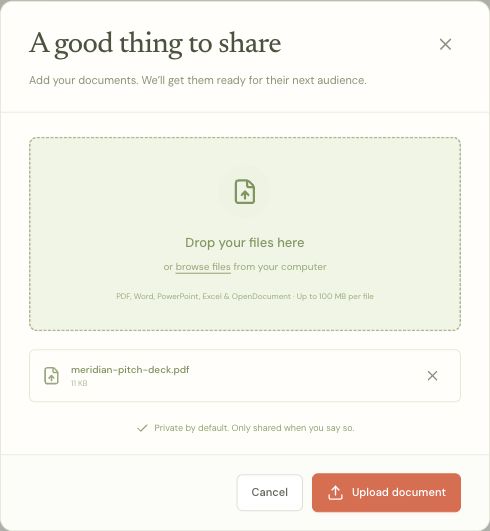
- Open your AnyShare organization and select Upload document.
- Choose your deck, then select Upload document in the dialog.
- Wait until the file is ready. Open it from Documents and use Preview to check the slides, charts, and text.
Give it a recognizable name with Edit details. In this walkthrough, we uploaded an eight-page PDF and named it “Meridian pitch deck (demo).”
Give each audience the right access.
Select Share document. Name the link for its intended audience so you can recognize it later.
- Verified email
- Keep the recommended default. Recipients confirm access to their email inbox using a one-time code.
- Restrict to specific people
- Add allowed email addresses when only named recipients should be able to open the deck. Without this restriction, another person with the link can verify their own email.
- Password and expiry
- Add them when your sharing arrangement calls for another access check or a defined end date.
- Allow downloads
- Off by default. Leave it off if you want recipients to view in the browser without offering the original file for download.
Review the controls, then select Create share link. Disabling downloads does not prevent screenshots or someone copying what they can see.
Read how the access controls work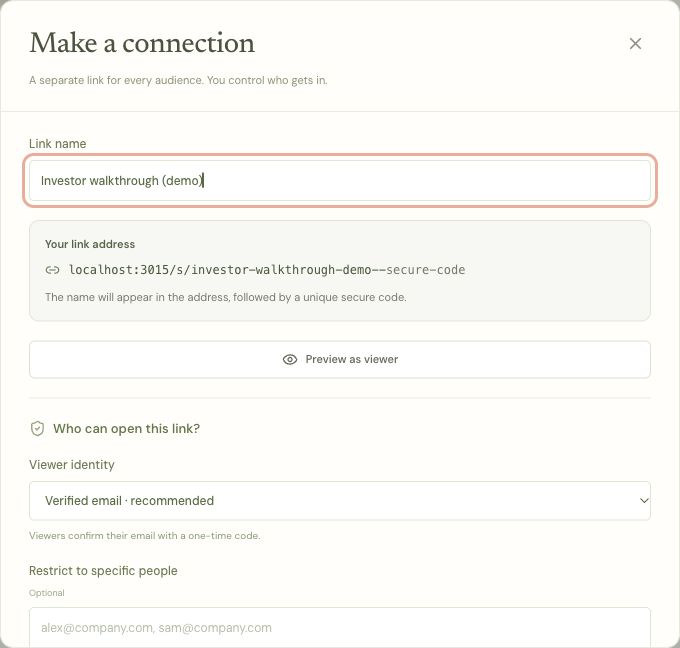
Send the link. Keep the controls.
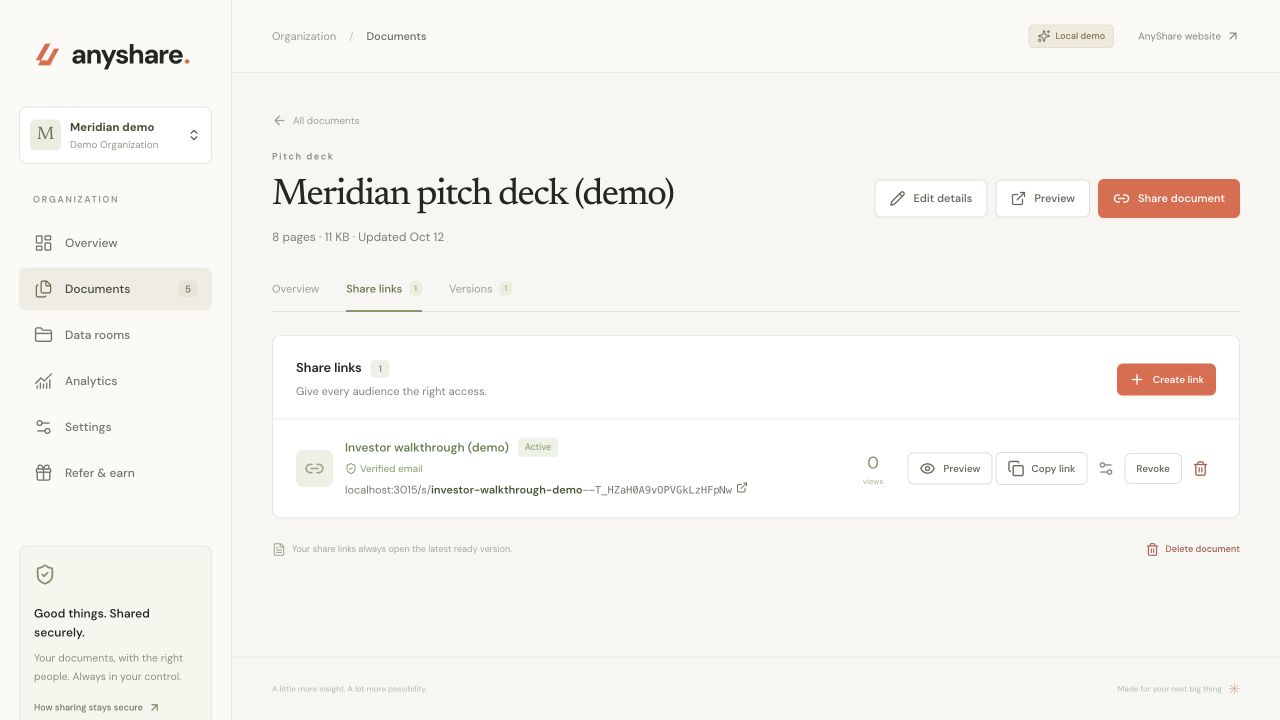
The new link appears in the document’s Share links tab with its access status. Use the copy button beside it. Open the copied URL in a fresh browser session to check the recipient flow before sending it through your usual email or messaging channel.
A separate link for each audience helps you manage access independently. Changing a link’s name or settings keeps its address; revoking it stops future access through that link. A revocation cannot recall a file someone already downloaded.
A quick check. Then the deck.
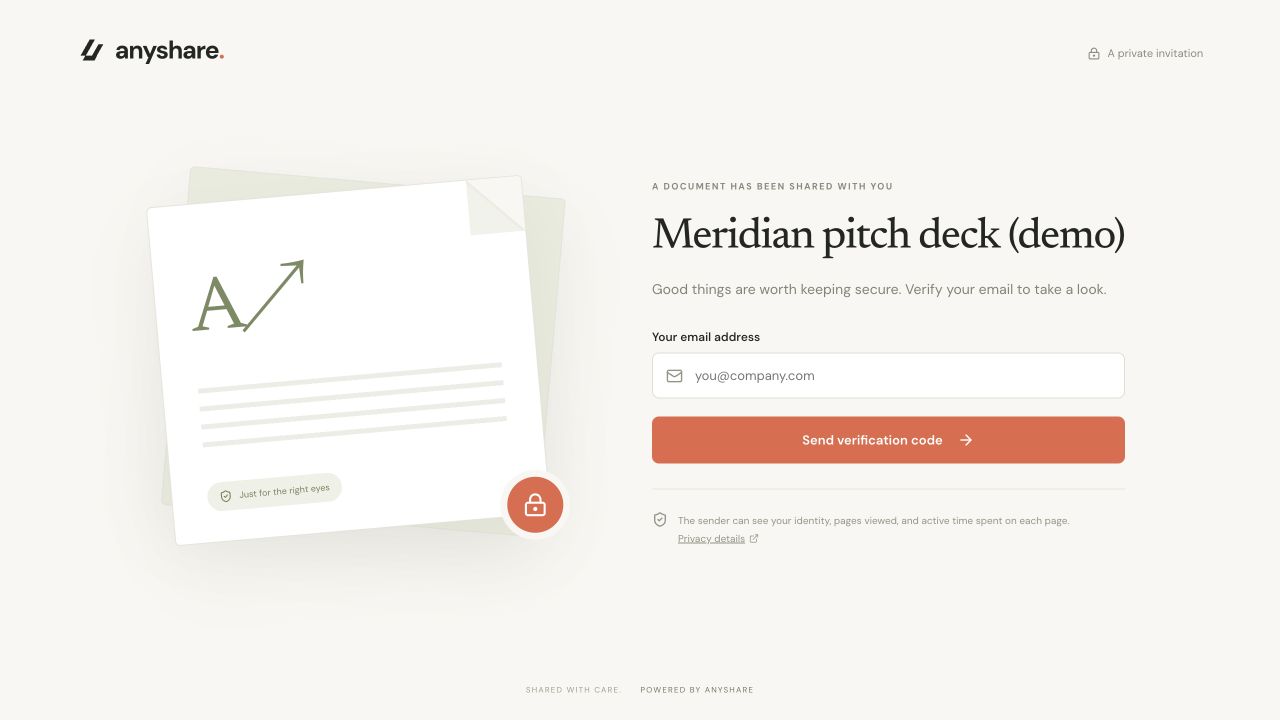
The recipient does not need an AnyShare account. With verified email enabled, they enter their email address, receive a code, and choose Verify & open. They also complete any password or acknowledgement checks you enabled.
The access screen explains that the sender can see identity, pages viewed, and active time. If you use an allowed-email list, remind recipients to use the exact address you allowed.
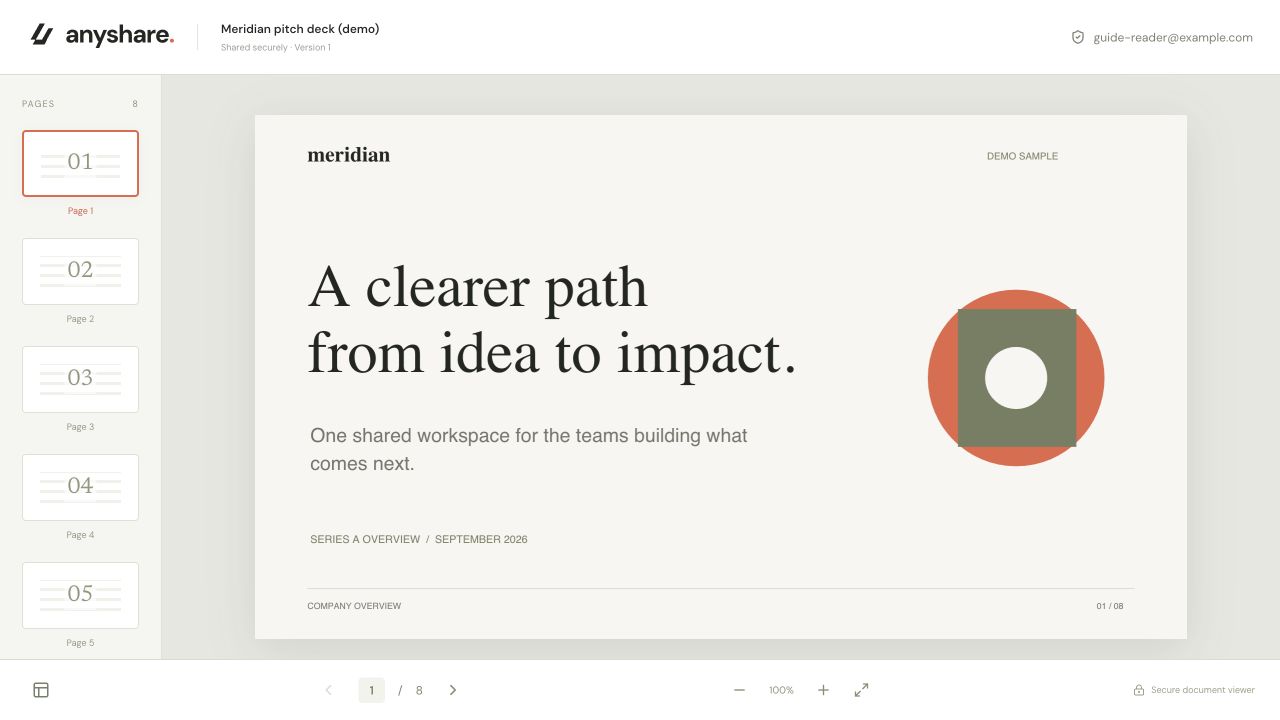
After verification, the deck opens in the browser. Recipients can select slides from the sidebar or use the page controls. Check this view yourself to make sure the deck is readable before an important send.
Read the activity. Keep the context.
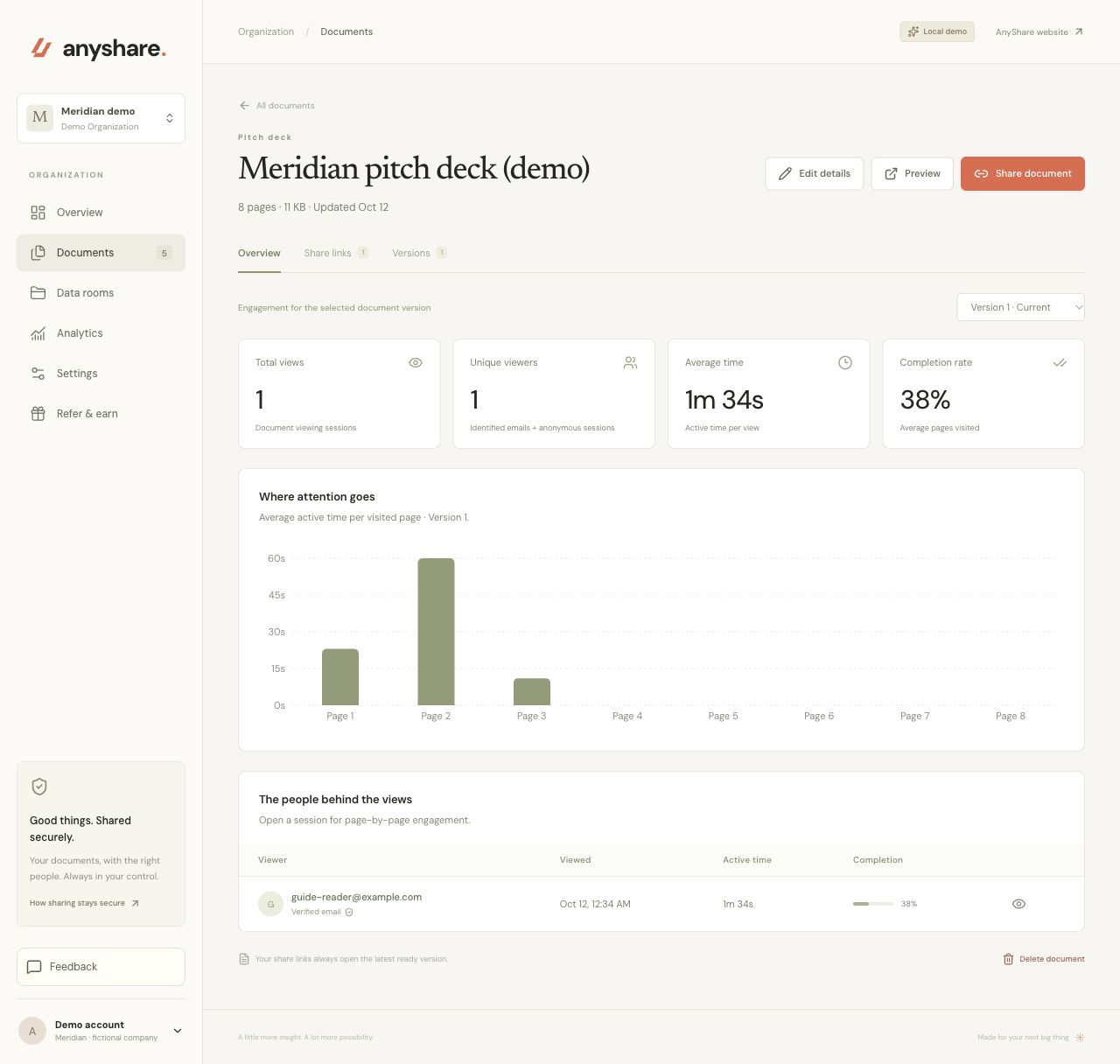
Return to the document’s Overview. Check the selected document version, then review visits, unique viewers, average active time, and completion. The page chart shows where time was recorded. Open a viewer’s session details for individual page timings.
Visits count viewing sessions, not individual people. A returning recipient can create another visit. The unique-viewer count groups sessions by email address when one was supplied; each anonymous session counts separately. A captured email is not automatically a verified identity, and one inbox can be shared.
Active time is an estimate of activity.
Time accumulates on the current ready page while the viewer is visible and focused. It pauses when the tab is hidden, the window loses focus, or no pointer, keyboard, scroll, or touch activity is detected for 60 seconds. Average active time is the recorded active time per visit in the selected results. It does not prove attention or understanding.
Completion counts pages with recorded activity.
A session’s completion is the percentage of that version’s pages with recorded active time. Our three-page visit to an eight-page deck appears as 38% after rounding. The summary averages session completion across the selected visits. These percentages do not measure how much of the pitch was understood.
Verification establishes inbox access.
A verified email confirms access to that inbox. It is not proof of legal identity or that only one person saw the screen. Anonymous access cannot reveal an unidentified person’s name.
If someone spends time on the business model, prepare to explain the assumptions. If a session ends early, check whether the deck opened properly before drawing conclusions. Use activity alongside the recipient’s questions and replies.
A few practical answers.
01Can I update the deck without sending a new link?
Yes. Open the document’s Versions tab and upload a new version under the same document. Share links open the latest ready version. Earlier visits remain tied to the version the recipient opened, so select the right version when reading analytics.
02Can I prevent someone forwarding my link?
You cannot stop someone copying a URL. You can restrict which email addresses may open it, require verification, add a password or expiry, and revoke the link. These controls govern access; they cannot prevent screenshots or recall copies already saved.
03Why might I see no page activity yet?
Creating a link does not create a recipient visit. Check that the recipient opened the actual share link and the deck loaded, then refresh the Overview and check its version selector. Owner previews are for checking the document; a controlled recipient test is the way to verify the full sharing flow.
04Can I share supporting documents alongside the deck?
Yes. Put related files in a data room and share a room link. Keep the initial pitch easy to navigate, and choose access controls appropriate to the material. Set up an investor data room with our checklist.