Share documents from ChatGPT.
Keep track of what happens next.
How to share documents from ChatGPT and track views with AnyShare—from the file in your conversation to a protected link and a useful engagement report.
Install AnyShare in ChatGPT, connect your organization, and attach the original document. Ask for a link that requires email verification and disables downloads. After recipients open it, ask AnyShare for the recorded engagement over a specific date range.
Your assistant.
Your AnyShare organization.
Open AnyShare’s public plugin listing and choose Install plugin. Sign in to ChatGPT if prompted, then sign in to AnyShare. You can also find it by searching for “AnyShare” in the Plugins directory.
On AnyShare’s permission screen, check that the connection returns to chatgpt.com. Choose the organization you intend to use. For this walkthrough, allow document lookup, uploads, secure share links, and engagement reads. Adding files to existing data rooms is a separate permission.
Approve the permissions you want to grant and return to ChatGPT. Start a new conversation and select AnyShare with @AnyShare, or choose it from the available plugins. Menu labels can vary by client and workspace policy.
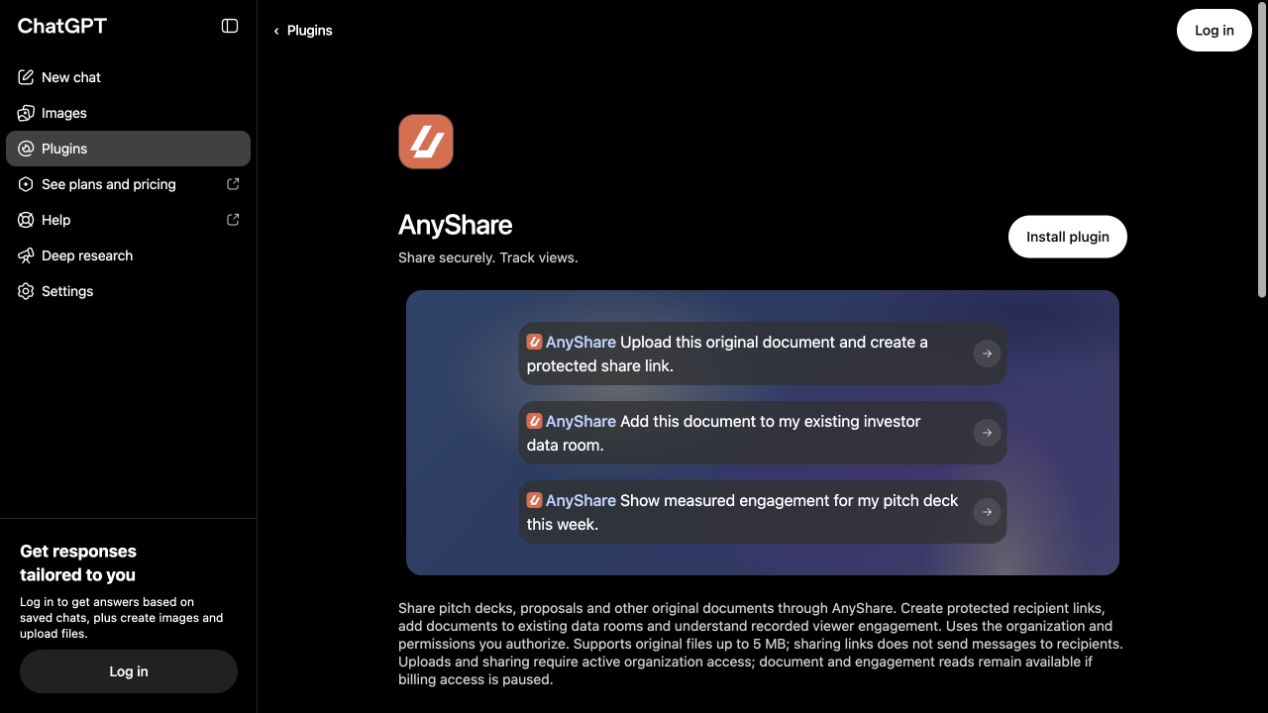
Use AnyShare to check which organization is connected and whether I can upload documents and create share links.
Confirm the organization before uploading. Changing organizations in the AnyShare website does not switch an existing assistant connection. If access is paused, resolve it with your organization owner before continuing.
The document you made.
The file you mean to share.
Attach your finished PDF to the conversation. A pitch deck, proposal, or project brief is a good first example. If ChatGPT helped you write the content, make sure you have the actual file you want recipients to open.
AnyShare needs the original file bytes. Pasting its text or mentioning a filename on your computer is not an upload. When ChatGPT can transfer the attachment, AnyShare imports it directly. If it cannot, follow the authenticated browser upload link it provides, choose the original file, and return to the conversation.
Upload the attached Meridian pitch deck to AnyShare using the original PDF. Wait until the document is ready, then tell me its title and processing status. Do not create a share link yet.
Replace “Meridian pitch deck” with your document’s name. Wait for a ready status before sharing. If processing is still pending, use the returned document or upload reference to check again; you do not need to upload another copy.
A protected link.
A deliberate handoff.
Create a share link for the Meridian pitch deck I just uploaded. Require verified email access and keep downloads disabled. Tell me the access settings and return the recipient link.
Check the document title and access settings in the response. Email verification means a recipient must prove control of their email address before opening the document. It does not restrict access to a specific person unless you also configure an email allowlist.
AnyShare’s new plugin-created links require verified email and disable downloads by default. You can review the link in the AnyShare website before sending it. Configure passwords in the website, not in your chat. Disabling downloads does not prevent screenshots or someone copying information they can see.
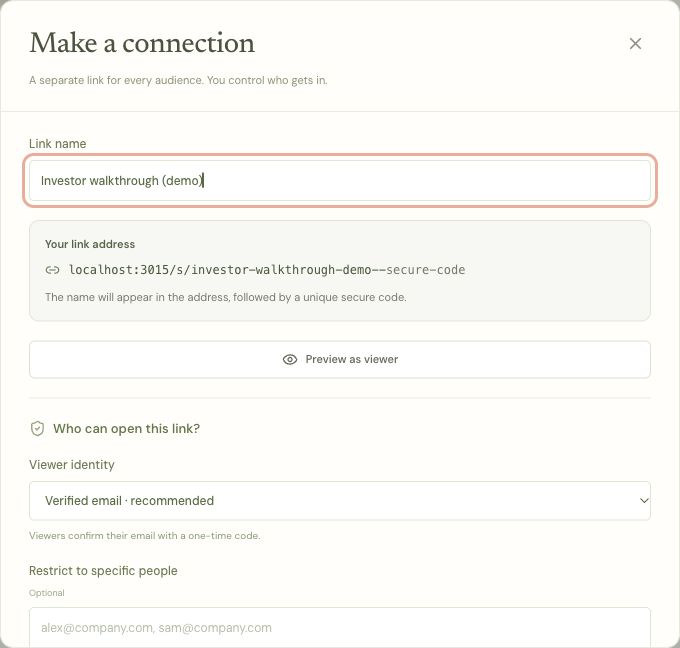
Copy the recipient link into your email or message. Creating a link with AnyShare does not send it to anyone. For a complete recipient walkthrough, see how to share a pitch deck securely and track slide views.
See the activity.
Prepare your next conversation.
Once someone has opened the share link, ask for engagement on that document. Specify a date range and start with an aggregate report. A newly created link may correctly have no visits.
Show recorded engagement for the Meridian pitch deck over the past seven days. State the date range, summarize visits, page activity and completion, and explain any missing data or measurement limits. Start with aggregates, without viewer identities.
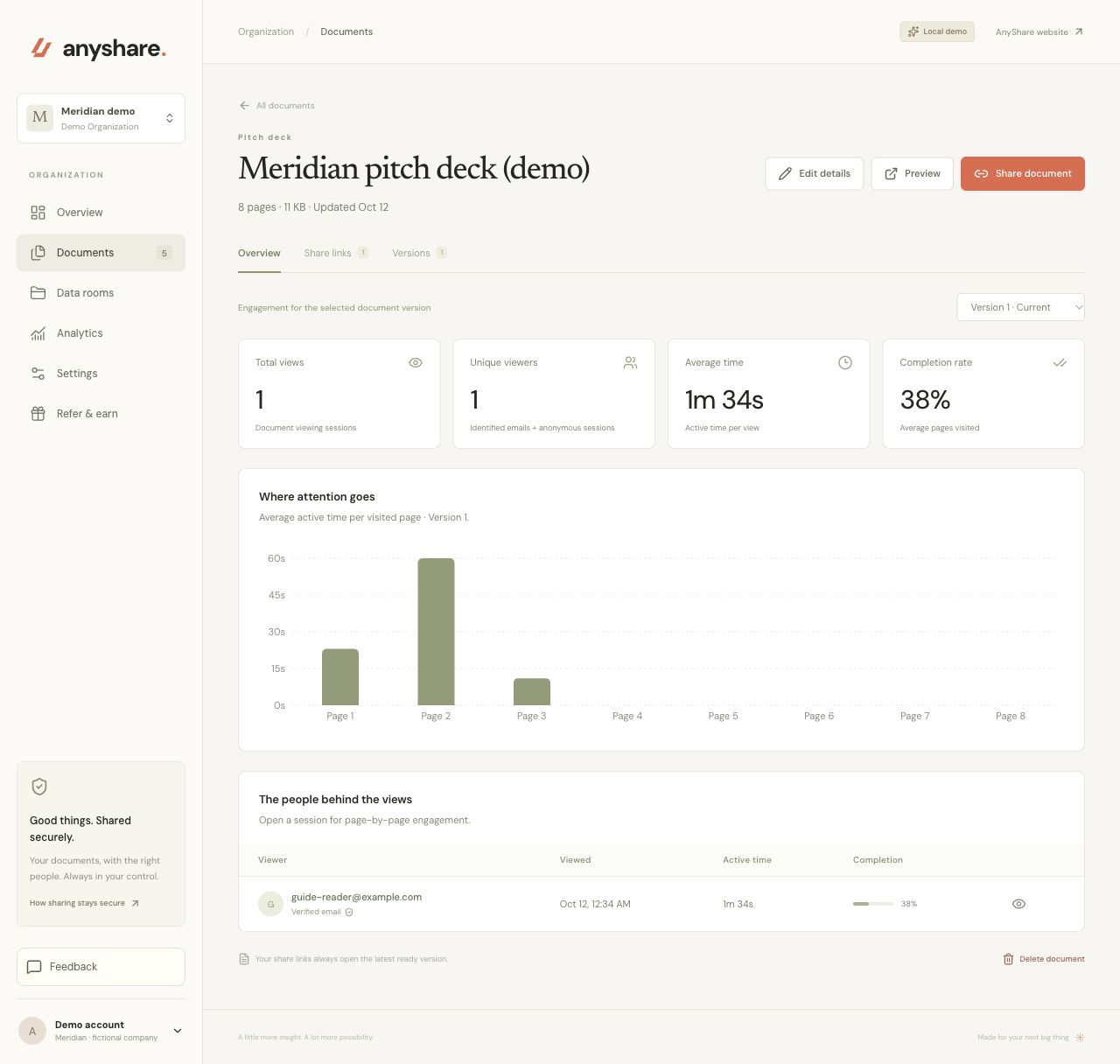
Recorded active time and completion describe viewer activity. They do not prove someone read, understood, liked, or agreed with the document. Repeat sessions and repeat pages can affect totals; use the report alongside the recipient’s actual questions.
When you need individual details, explicitly ask for recorded viewers and their verification status. An anonymous visit cannot identify a person. Reading an engagement report does not add a document view.
A few practical answers.
01Do I need a separate AnyShare account?
Yes. The plugin connects to an AnyShare organization you can access. Uploading and creating links require active organization access. Read-only document and engagement access remains available with the required permissions if billing access is paused. See current AnyShare plans and trial terms.
02Why does the listing say 5 MB when the website says 100 MB?
The published ChatGPT plugin listing currently states 5 MB; the AnyShare website accepts supported originals up to 100 MB. Use a PDF under 5 MB for this walkthrough. For a larger file, upload through the AnyShare website, then ask the plugin to find the existing document and create its share link. Your ChatGPT client may impose additional attachment limits.
03What if ChatGPT cannot access my attachment?
Ask AnyShare for an authenticated upload handoff, open it, and choose your original file in the browser. Return to the conversation to check processing. Do not ask the assistant to rebuild the original from extracted text or keep retrying a missing attachment.
04What if I cannot install or see the plugin?
Open the direct AnyShare listing, check that you are signed in, and review your workspace’s plugin policy. After connecting, start a new chat and select AnyShare. Installation and account connection are separate steps. Contact AnyShare support if the connection fails.
05Can I disconnect it later?
Yes. Open AnyShare → Settings → AI connections and disconnect the ChatGPT connection. Revocation stops future access through that connection; existing documents and share links remain. You can also uninstall the plugin in ChatGPT.